Kinesis Data Stream as Lambda Trigger in AWS CloudFormation
This AWS CloudFormation YAML template demonstrates how a Kinesis Data Stream stream can be implemented as Lambda Trigger in AWS CloudFormation.
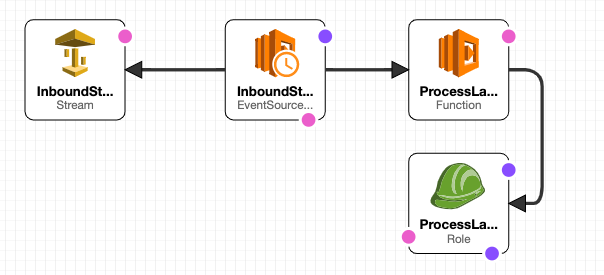
Simply deploy the following template via the AWS CloudFormation console. In the designer the template looks like this:
Template:
AWSTemplateFormatVersion: 2010-09-09
Resources:

  InboundStream:
    Type: AWS::Kinesis::Stream
    Properties:
      RetentionPeriodHours: 24
      ShardCount: 1

  InboundStreamLambdaFunctionEventSourceMapping:
    Type: AWS::Lambda::EventSourceMapping
    Properties:
      BatchSize: 100
      Enabled: true
      EventSourceArn: !GetAtt InboundStream.Arn
      FunctionName: !GetAtt ProcessLambdaFunction.Arn
      MaximumBatchingWindowInSeconds: 0
      StartingPosition: LATEST

  ProcessLambdaFunctionExecutionRole:
    Type: AWS::IAM::Role
    Properties:
      AssumeRolePolicyDocument:
        Version: "2012-10-17"
        Statement:
          - Effect: Allow
            Principal:
              Service:
                - lambda.amazonaws.com
            Action:
              - sts:AssumeRole
      ManagedPolicyArns:
        - arn:aws:iam::aws:policy/service-role/AWSLambdaKinesisExecutionRole

  ProcessLambdaFunction:
    Type: AWS::Lambda::Function
    Properties:
      Code:
        ZipFile: >
          exports.handler =  async function(event, context) {
            console.log("EVENT: \n" + JSON.stringify(event, null, 2))
            return context.logStreamName
          }
      Handler: index.handler
      Role: !GetAtt ProcessLambdaFunctionExecutionRole.Arn
      Runtime: nodejs12.x
      MemorySize: 128
      Timeout: 10

Outputs:
    InboundStreamName:
        Value: !Ref InboundStream
Quelle: Gist auf GitHub
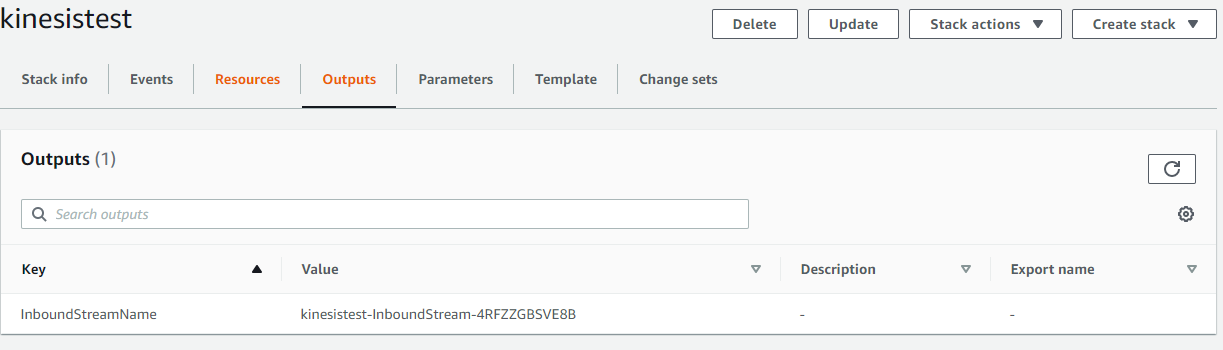
Now we can gather the stream name from the CloudFormation stack outputs section and send a test event using the AWS CLI:
aws kinesis put-record --stream-name <value> --data <value> --partition-key <value>
CLI Reference: https://docs.aws.amazon.com/cli/latest/reference/kinesis/put-record.html
The output should look like this:

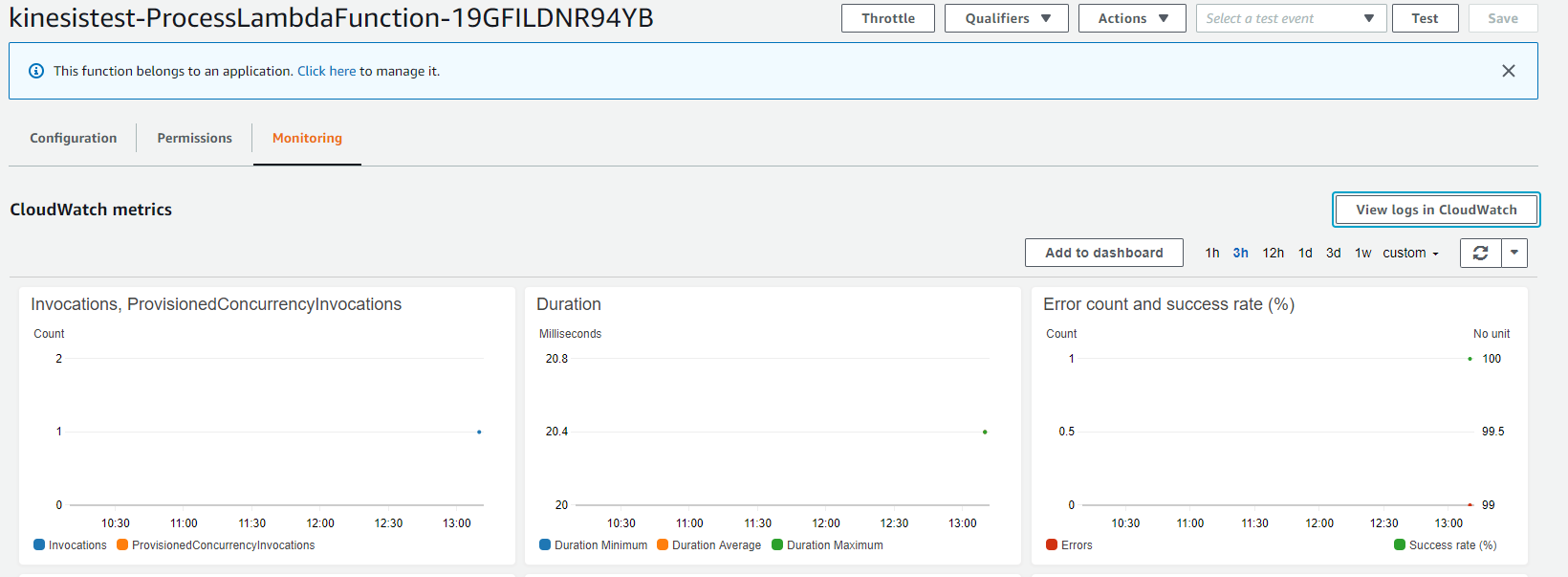
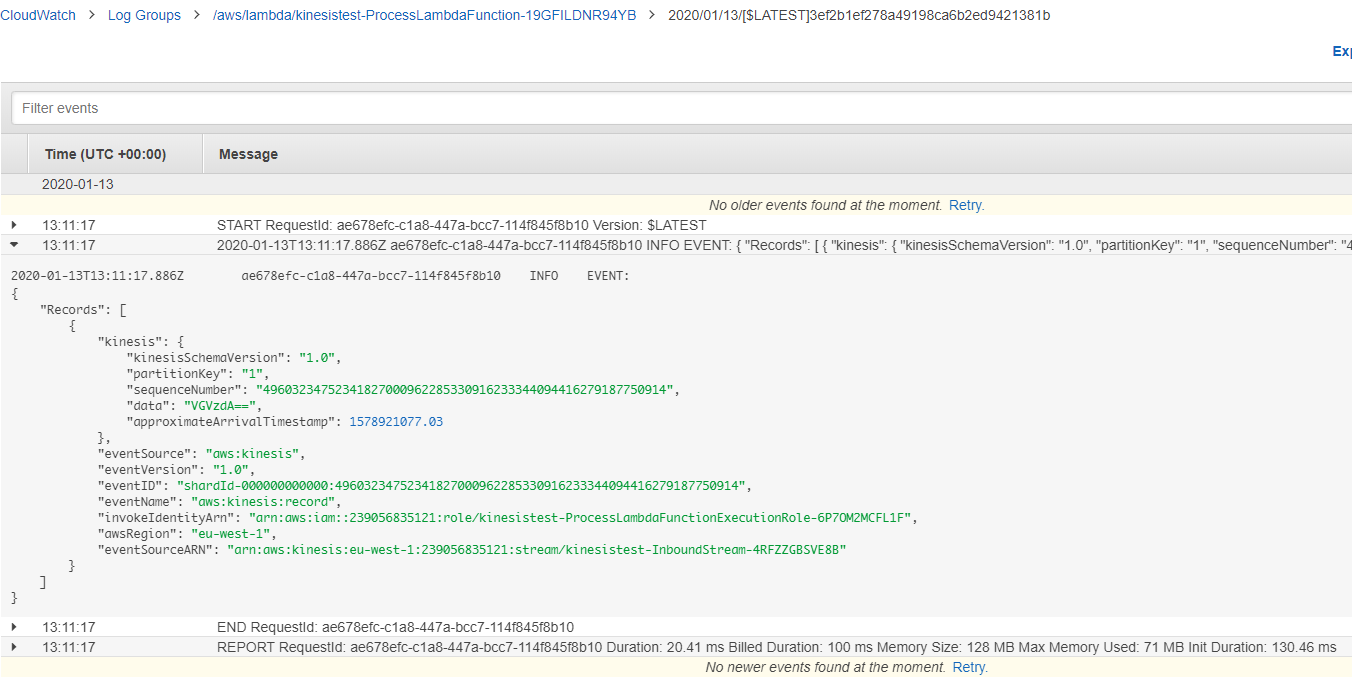
Now you can check in the Lambda Console if the Lambda has been invoked and what has been written to the logs.